Sending 500 postcards the old way — designing, printing, labeling, stamping, hauling to the post office — takes days and a dedicated team member. Doing it online takes about 30 minutes, start to finish.
This guide walks you through exactly how to send postcards online in bulk using a CSV upload workflow on WriteToMail. By the end, you'll have a mailable campaign ready to launch: recipient list formatted, postcard designed, variable fields mapped, and order confirmed.
What You'll Need Before You Start
Before touching any design tool or upload interface, get these three things ready:
1. A clean recipient list — Names, mailing addresses, and any personalization data (custom messages, promo codes, property addresses, etc.) in a spreadsheet. CSV format, not Excel (.xlsx). More on formatting below.
2. Postcard content — Your headline, body copy, call to action, and any imagery. Have it written and approved before you start. Revisions mid-workflow waste time.
3. A WriteToMail account — Free to create. You'll only pay per piece sent when you place the order.
One more thing worth stating upfront: the USPS requires a specific address format for machine-readable mail. If your address data is messy — inconsistent state abbreviations, missing ZIP codes, apartment numbers in the wrong field — your campaign will fail at the address verification step. Clean the list first.
Step 1: Build and Format Your CSV File
Expected outcome: A properly structured CSV file that passes address validation and maps cleanly to your postcard template.
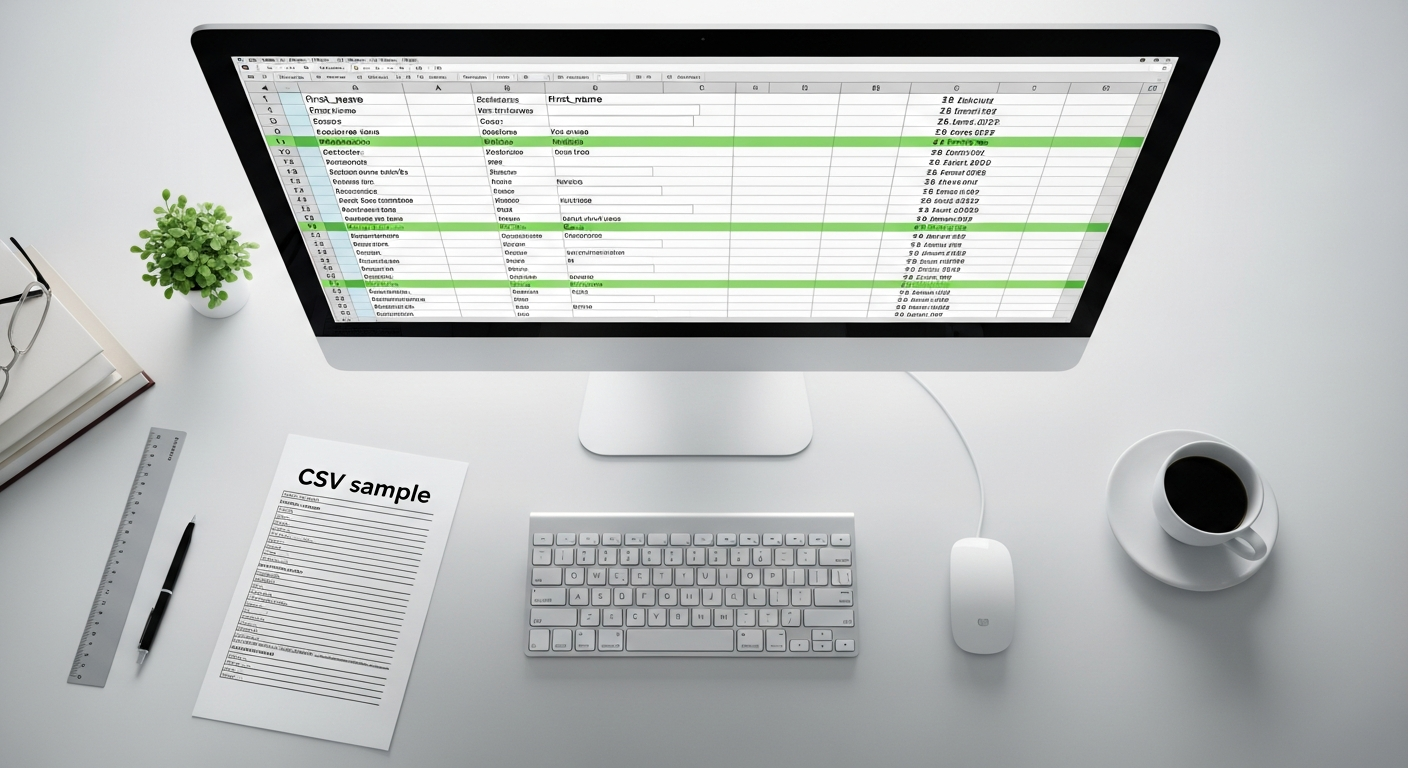
Open a spreadsheet (Google Sheets, Excel, or Numbers) and create columns for each piece of data you need. At minimum, every bulk postcard send requires:
| Column Name | Example Value |
|---|---|
| first_name | Sarah |
| last_name | Okonkwo |
| address_line1 | 412 Birchwood Ave |
| address_line2 | Apt 3B |
| city | Columbus |
| state | OH |
| zip | 43215 |
If you're personalizing beyond the address — which you should be — add columns for your variable fields:
custom_message— "We miss you, Sarah! Here's 20% off your next visit."promo_code— SARAH20property_address— For property managers sending maintenance notices or lease renewalsamount_due— For billing reminders or invoice follow-ups
Keep column headers lowercase with underscores. Spaces and special characters in headers cause mapping errors. Save the file as .csv (UTF-8 encoding), not .xlsx.
Quick data hygiene checklist before export:
- Remove any rows with blank address fields
- Standardize state to two-letter abbreviations (CA, TX, NY — not California)
- ZIP codes should be 5 digits; leading zeros must be preserved (use text format in Excel)
- No commas inside address fields — they break CSV parsing
- Delete duplicate rows
A 2023 USPS Mailer Scorecard analysis found that address quality issues — including missing secondary address data and incorrect ZIP+4 codes — are the leading cause of undeliverable-as-addressed (UAA) mail. Cleaning your list before upload is not optional.
Step 2: Design Your Postcard Template
Expected outcome: A finished postcard design with clearly labeled placeholder fields for your variable data.
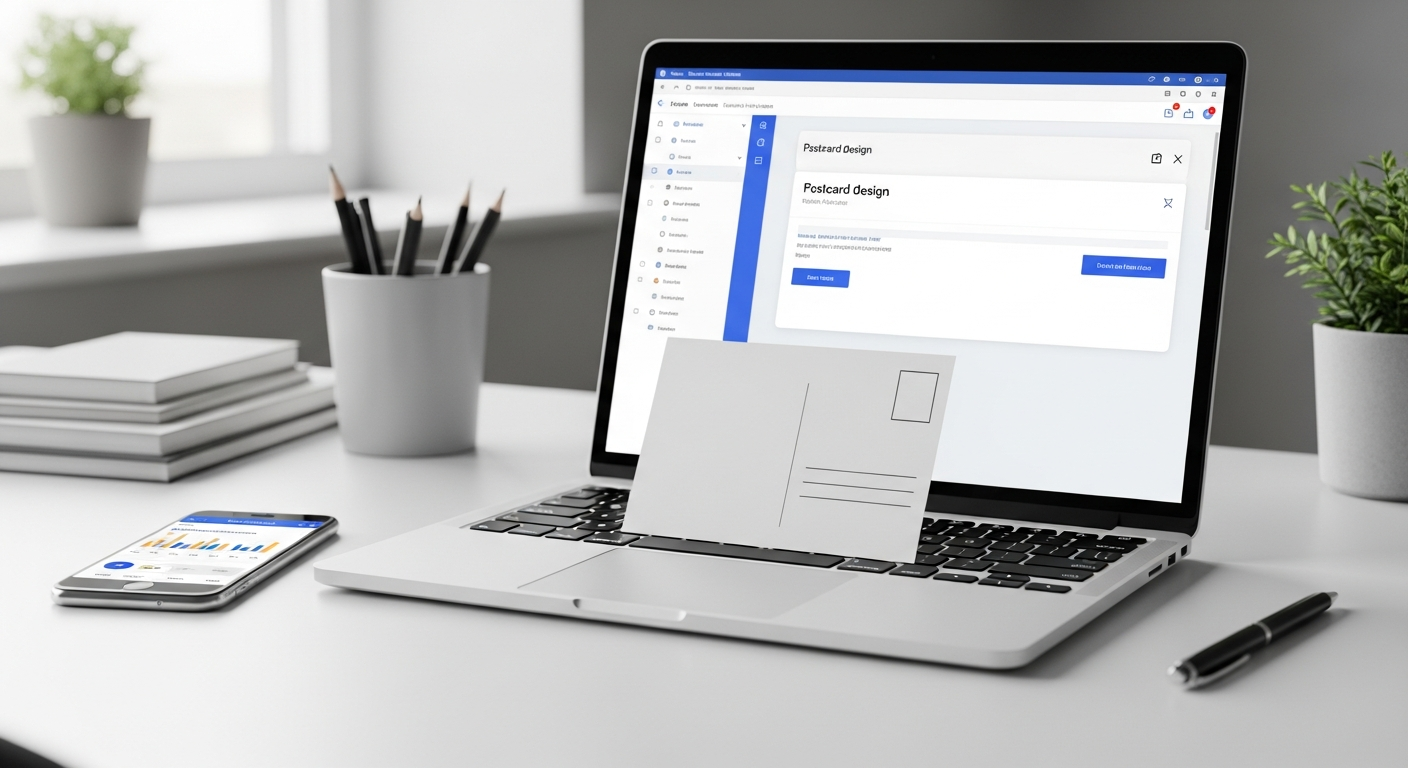
Log into WriteToMail and navigate to the postcard creation tool. You'll design both sides of the postcard here.
Front of the card — This is your visual hook. Keep it focused:
- One strong headline (8 words or fewer)
- Supporting visual or offer statement
- Your brand logo or business name
Less is more on the front. A postcard gets roughly 2 seconds of attention before the recipient decides whether to keep reading. Use that space for a single, punchy message — not a product catalog.
Back of the card — This is where personalization lives. Structure it with:
- Variable greeting:
{{first_name}} - Body copy with your offer, notice, or message
- Call to action with a URL, phone number, or QR code
- Return address (required by USPS)
The variable field syntax — {{column_name}} — maps directly to your CSV column headers. If your CSV has a column called promo_code, your postcard template references it as {{promo_code}}. The platform substitutes the real value for each recipient before printing.
If you're newer to postcard direct mail and wondering whether postcards or letters are the right format for your campaign, the postcard vs. letter direct mail comparison breaks down response rates and cost-per-piece across different use cases. Postcards win on visibility; letters win on information density.
Step 3: Upload Your CSV and Map Variable Fields
Expected outcome: Every CSV column correctly mapped to its corresponding postcard placeholder.
In the WriteToMail bulk mailing interface, upload your .csv file. The platform reads your column headers and presents them for mapping.
Field mapping works in two parts:
Address fields — Map your CSV columns to the required USPS address components: recipient name, street address, city, state, ZIP. These feed the mailing label side of the postcard. Get these wrong and the card is undeliverable.
Content fields — Map your personalization columns to the {{placeholder}} fields in your template. This is the mail merge step. For each custom variable you included in your design — {{first_name}}, {{custom_message}}, {{promo_code}} — confirm which CSV column feeds it.
After mapping, the platform generates a preview. Review at least 10–15 rows from your preview, not just the first one. Row 1 might be clean; row 247 might have a blank custom_message field that renders awkwardly in the printed copy.
If you're unfamiliar with how bulk mail merge works end-to-end, the guide on how to send bulk mail online covers the full workflow including how USPS First-Class Mail handles bulk sends.
Step 4: Preview and Approve Your Campaign
Expected outcome: A confirmed visual proof showing accurate variable substitution across multiple recipients.
Never skip the preview step. This is where a 15-minute review saves you from reprinting 1,000 postcards.
Check for:
Rendering issues — Do long names or custom messages overflow their text boxes? A recipient named "Bartholomew" takes more space than "Kim." If your design has a fixed text field, short names and long names need to both work.
Blank fields — Any recipient row missing a value for a variable field will print with an empty space — or worse, the raw placeholder text like {{promo_code}}. Fix these in your CSV before finalizing.
Address accuracy — Confirm the city/state/ZIP matches for several rows. Cross-reference a few against your source data to catch import errors.
Tone consistency — Personalization should feel natural. "Hi Sarah, here's your offer" works. "Hi SARAH OKONKWO, here's your offer" doesn't. Review how names render in context, not just in isolation.
Once the preview looks right across your sample rows, approve the design. You're one step from sending.
Step 5: Set Quantity, Confirm Pricing, and Launch
Expected outcome: A submitted bulk postcard order ready for printing and USPS delivery.
WriteToMail prices per piece. Your total cost is the per-piece rate multiplied by your recipient count. Check the current pricing tiers at WriteToMail's pricing page — per-piece rates vary based on volume and plan.
Before confirming, verify:
- Total recipient count matches your expected CSV row count (minus the header row)
- Mailing class — WriteToMail sends via USPS First-Class Mail
- Return address is correct on the card design
- Billing information is current
Submit the order. WriteToMail handles printing, postage, and delivery. You don't need a printer, stamps, or a trip to the post office — the platform manages the full fulfillment chain.
For campaigns where postcards aren't the right fit — say, a longer message that needs more space — direct mail marketing for small businesses covers when to use letters instead, including how CSV bulk sending works for letter campaigns on the same platform.
Step 6: Track Delivery and Measure Response
Expected outcome: A clear picture of campaign delivery and recipient response.
USPS First-Class Mail typically delivers within 3–5 business days for domestic addresses. Plan your campaign launch accordingly — a promotion tied to a specific date needs to be submitted at least a week in advance.
For response tracking, the most reliable methods are:
Unique URLs or UTM parameters — Create a campaign-specific landing page URL (e.g., yourdomain.com/postcard-spring26) and track visits in Google Analytics. Every website visit from that URL = a postcard response.
Unique promo codes — Variable field personalization lets you assign individual codes per recipient. When a code is redeemed, you know exactly which recipient responded.
Dedicated phone number — A trackable number (via services like CallRail) on your postcard routes calls to your main line while logging volume.
Direct mail response rates average 4.4% according to the Association of National Advertisers — significantly higher than email's 0.12% average click-through rate. Postcards sent to a house list (existing customers or leads) perform even better, often hitting 5–9%.
Common Mistakes and How to Avoid Them
Mistake: Skipping address standardization ZIP codes with leading zeros (East Coast states like 01001 in Massachusetts) drop the leading zero in Excel's default number format. Always format ZIP columns as text before export. One wrong ZIP = one returned postcard = wasted spend.
Mistake: Using too many variable fields Five personalization variables sound impressive. In practice, a postcard has limited space. Keep it to 2–3 variable fields maximum: name, a custom message, and maybe a promo code. More than that and the design gets cluttered or the copy reads choppy.
Mistake: Uploading the file and not previewing Every bulk sender learns this lesson once. The preview step exists for a reason. A malformed row that looks fine in your spreadsheet can render as garbage text on a printed card.
Mistake: Sending to an old list without suppression If you have customers who opted out of marketing or changed addresses, they need to be removed before upload. Sending to known opt-outs creates compliance issues. Sending to bad addresses wastes budget.
Mistake: Generic copy with personalized names
Adding {{first_name}} to a generic mass-market message doesn't make it personal — it makes the personalization feel hollow. If you're going to use variable data, make the content earn it. The message itself should acknowledge why this person is receiving this offer.
What to Do Next
You've built the workflow. Now make it repeatable.
Save your CSV template with the correct headers so future campaigns start with a clean structure. Keep your postcard design as a saved template in WriteToMail — update the copy and launch the next campaign in minutes instead of starting from scratch.
Property managers sending monthly notices, retailers running quarterly promotions, service businesses doing seasonal re-engagement — the teams who benefit most from bulk postcard sending are the ones who systematize it. The first campaign takes 30 minutes to build. The fifth campaign takes 10.
If your business sends mail beyond postcards — invoices, legal notices, formal letters — WriteToMail handles those through the same platform. The landlord-tenant notice mailing guide is a useful read for property managers who need legally compliant physical notice delivery at scale.
Ready to send postcards online in bulk? Start your campaign on WriteToMail.
Sources
- USPS PostalPro — Mailer Scorecard — Referenced for data on undeliverable-as-addressed (UAA) mail caused by address quality issues
- USPS Delivers — The Science of Direct Mail — Referenced for data on postcard attention span and first impressions in physical mail
- Association of National Advertisers — Direct Mail Response Rates — Referenced for 4.4% average direct mail response rate and comparison to email CTR